


G Cloud Backup
4.473.34K Reviews
App Specs
- Version
- 12.2.3
- Updated On
- License
- Free
- Downloads
- 5,000,000+
- Developer
- Genie9 LTD
- Categories
- Productivity
- Platform
- Android
Screenshots
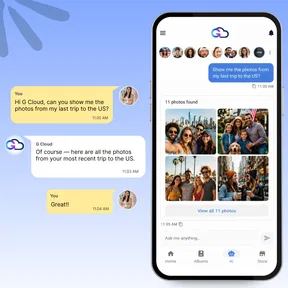

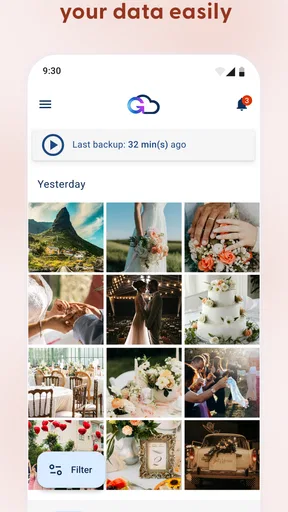
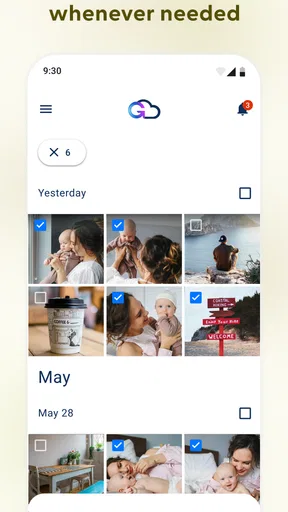
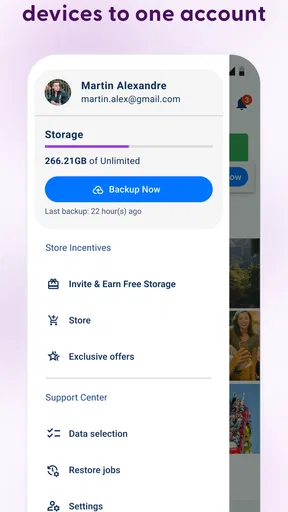
 Analysis by AppCompare
My first-week reaction to G Cloud Backup was that it makes a usually easy-to-postpone chore feel manageable. The appeal is not complicated: choose what matters, get a backup routine going, and have a route to retrieve those files if your phone is lost, replaced, or accidentally cleared. I like that focus, but I would treat any backup app as part of a broader plan rather than a magic guarantee. Before relying on it, I’d check what I’ve selected, whether the first backup has finished, and whether I can find the material I expect to restore.
A quick start that still deserves a check
The first setup is most useful when I make deliberate choices instead of tapping through every option. I’d begin with the items that would be hardest to recreate—such as personal photos or contacts—and then look at the other categories available on my phone. This makes the initial backup easier to understand and helps avoid filling cloud space with material I don’t care about. A backup that runs quietly is convenient, but quiet operation can also make it easy to assume everything is covered when a category was never selected.
G Cloud Backup is a free productivity app from Genie9 LTD, and it has been available since July 9, 2012. It has a 4.5 average from around 316,000 ratings, with over 5 million installs. Those figures suggest it has found a sizeable audience, but I’d still judge it by whether its backup choices fit my own phone and habits. It’s rated for Everyone, runs on devices with OS version 10 or later, and its current version is 12.1.7. Optional in-app purchases range from $0.99 to $269.99 per item, so I’d look carefully at the purchase details before paying for extra capacity or features.
When the routine starts earning its place
The lasting value is less about the novelty of seeing files appear in a cloud account and more about whether backups keep happening without taking over my day. Automatic scheduling can help turn protection into a habit, while selective backup gives me a way to avoid treating every item on my phone as equally important. I’d set a reminder to review the selection occasionally, especially after changing how I use the device or adding a lot of new photos. A backup routine is only useful if it continues to cover the things I actually care about.
A realistic use is a phone upgrade: I can make sure the old device has completed a recent backup before setting the new one up, then use the restore option to retrieve the data I chose to save. I wouldn’t erase or trade in the old phone until I had checked the new one and confirmed that the important material is there. That small pause is worthwhile. A restore is not a substitute for checking the contents of the backup, and keeping the old device briefly gives me another way to recover if I overlooked something.
Maintenance, limits, and sensible expectations
Some upkeep is part of using cloud backup well. I’d review selected folders so temporary downloads or files I can easily replace don’t crowd out personal material. If storage starts to feel tight, trimming the backup scope may be a better first move than paying for more. The app offers in-app purchases, but the range is wide enough that I would compare the specific option with my needs rather than assume an upgrade is automatically worthwhile.
I also wouldn’t rely on one service as the only home for irreplaceable files. A cloud backup can be a useful recovery layer, but it still depends on having access to the account and being able to complete a restore. For especially important photos or documents, I’d keep another copy somewhere separate. People who want a full device image, a business-grade retention system, or a tool focused on syncing and collaboration may be better served by a different kind of service. G Cloud Backup is most appealing when the goal is a straightforward personal backup routine, not a complete answer to every storage problem.
Worth Reading Before You Choose

EA SPORTS FC Mobile 26 Is a Bigger Football Game, but It Takes Time

Flipboard Shows What News Apps Must Do Beyond the Feed

Switching to Android Auto Means Rethinking Your Driving Routine

Google Calendar Makes a Crowded Week Easier to Manage

Ludo King Makes the Most of the Minutes Between Plans

Baby Panda World Brings Quick Play to Modern Phones, but Its Game Library Feels Busy
What can cause backup fatigue
The main risk is not that a backup app asks for attention every day; it’s that I stop thinking about it because it runs automatically. That can create false confidence if the wrong categories are selected, the account is inaccessible, or I haven’t checked how a restore works. I’d test the process with something nonessential before depending on it during a stressful phone replacement. I’d also check backup status after changing devices or adjusting what is included, rather than assuming the old routine carried over exactly as intended.
Compared with relying only on a phone’s built-in backup, a separate app can offer a more focused way to choose personal data and retrieve it. The trade-off is another account and another service to maintain. Compared with manually copying files to a computer, scheduled cloud backups demand less hands-on effort, but they also make it less obvious where each copy lives and whether it is current. If I already have a reliable system that I understand and regularly test, adding another layer may not be worth the extra account management.
What is G Cloud Backup?
So, first things first, what exactly is G Cloud Backup? It’s a nifty app available for both Android and iOS that allows you to back up your data seamlessly. Whether it’s photos, videos, contacts, or even call logs, this app has got you covered. With just a tap, you can rest easy knowing your precious memories are safe and sound.
User-Friendly Interface
One of the things I love about this app is its super user-friendly interface. When you first open it, you’re greeted with a clean and intuitive layout. Everything is where you’d expect it to be, no need to dig through endless menus to find what you need. I felt like a pro navigating through it, and trust me, I’m not always tech-savvy.
Seamless Backup Experience
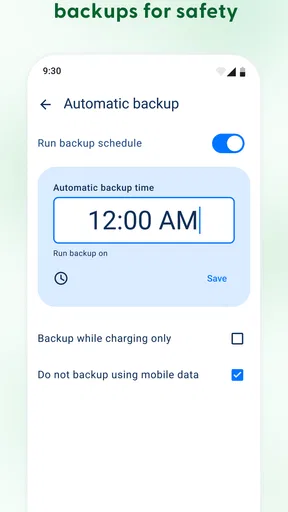
Now, let’s talk about the actual backup process. It’s as smooth as butter. No kidding. You can choose what you want to back up, whether it’s just your contacts or your entire gallery. The app runs in the background, so you can continue using your phone without any lag. And the best part? You can schedule backups to happen automatically. Set it and forget it!
Cloud Storage and Security
With G Cloud Backup, you get a generous amount of free cloud storage to start with, and if you need more, there are affordable plans available. Now, I know what you’re thinking: “But is my data safe?” Absolutely. The app uses military-grade 256-AES encryption to ensure your data is protected. It’s like having a digital vault for your personal information.
Restoring Data Made Easy
Restoring your data is as easy as backing it up. Whether you switch to a new phone or just need to retrieve something you accidentally wiped, the app makes the process painless. A few taps, and everything is back where it should be. It’s like magic, but real!
Customizable Options
What’s also cool is the level of customization you get. You can choose specific folders to back up or exclude certain files. This way, you’re in control of what gets saved and what doesn’t, making the app super efficient for your needs.
Why You Should Consider G Cloud Backup
Now, if you’re anything like me, you might be wondering if this app is right for you. If peace of mind is what you’re after, then yes, absolutely. The combination of ease of use, reliable performance, and strong security features makes it a standout choice for anyone looking to protect their data.
In a world where we rely on our phones for everything, having a reliable backup solution is not just convenient—it’s essential. With the ability to back up everything from contacts to photos, G Cloud Backup ensures that your digital life is secure and accessible anytime you need it. It’s like having a safety net for your phone.
So, if you’re tired of holding your breath every time your phone acts up, give G Cloud Backup a try. You’ll be glad you did. And trust me, your future self will thank you too.
Who will keep using it after the first week?
I think it earns a lasting place for people who want a dedicated, low-effort way to protect selected phone data and are willing to check that the routine is working. It is particularly useful for someone who takes personal photos, keeps contacts on the device, or expects to move to another phone and wants a straightforward recovery option. The practical benefit grows over time: each completed backup can reduce the amount of recent material at risk if a device is lost or damaged.
It is less compelling for someone who already has a backup habit they trust, rarely stores anything important on a phone, or wants a service that handles a complete device image with minimal choices. I would also be cautious if I know I won’t remember a separate account or won’t check whether a backup has completed. In that case, a system already built into the phone may be easier to maintain, even if it offers a different set of controls.
A small routine that prevents unpleasant surprises
My preferred workflow would be simple: choose the categories I genuinely need, let the first backup finish, and inspect the result before treating the phone as protected. After that, I’d leave scheduling on and revisit the selection when my phone habits change—for example, after I begin saving more work documents or start using a new folder for photos. That review is more valuable than repeatedly opening the app without a reason. It turns backup from a one-time setup task into a modest maintenance habit.
If I were helping a family member set it up, I’d make sure they understand which account they need to access later and show them where the restore process begins. This is a useful step because the person who configures a backup is not always the person who needs to recover the data. I’d also avoid promising that every detail of a phone will return exactly as before: the sensible expectation is to restore the content selected for backup, then check the new device and finish any setup that remains.
My long-term view
After the initial setup, the app’s value comes down to dependable routine and clear expectations, not constant interaction. I like the focused approach, especially for people who would otherwise postpone backing up personal files. The trade-offs are real: users need to keep an eye on what is selected, manage storage sensibly, and remember that a cloud account is another dependency. If those tasks feel acceptable, G Cloud Backup can be a practical part of a personal protection plan. If they sound like one more digital chore, a backup method already integrated into your phone may be the better fit.
Pros
- Easy setup and user-friendly interface.
- Automated backup scheduling available.
- Supports multiple device backups.
- Secure encryption for data protection.
- Offers free storage with upgrade options.
Cons
- Limited free storage space.
- Occasional sync delays reported.
- No real-time backup feature.
- Requires stable internet connection.
- Some features locked behind paywall.
FAQs for G Cloud Backup
What is G Cloud Backup and how does it work?
G Cloud Backup is a cloud storage solution designed to automatically back up your Android or iOS device's data. It securely stores photos, videos, contacts, call logs, and more. Once installed, you can select the specific data you want to back up, and the app will sync it to the cloud, ensuring your information is safe and accessible from anywhere.
Is G Cloud Backup secure for storing my personal data?
Yes, G Cloud Backup prioritizes user privacy and data security. It uses advanced encryption methods to protect your data during transfer and storage. The app complies with industry standards to ensure that your personal information remains confidential and secure against unauthorized access.
How much storage does G Cloud Backup offer, and is there a cost involved?
G Cloud Backup offers a free tier with a limited amount of storage, typically starting at 1GB. For users requiring more space, the app provides various subscription plans with additional storage at a monthly or yearly cost. These plans are designed to accommodate different storage needs.
Can I restore my data to a new device using G Cloud Backup?
Yes, G Cloud Backup makes it easy to restore your data to a new device. After installing the app on your new phone or tablet, you can sign in with your existing account and select the data you wish to restore. This feature is especially helpful when upgrading or replacing devices.
Does G Cloud Backup consume a lot of mobile data?
G Cloud Backup is designed to minimize data usage by allowing users to choose between Wi-Fi-only backups or cellular data backups. You can configure the app to perform backups only when connected to Wi-Fi to avoid using mobile data, making it user-friendly for those with limited data plans.


